Yes, every employee should have their own way of signing in to the point of sale, and on a counter computer that four clerks share, that usually means one account signed in for the register and a short PIN for each clerk. The login answers who is allowed in, the PIN answers who rang this sale, and permissions answer the question owners care about most, which is who can change a price, see a cost, or void a ticket. This guide walks through how those three layers fit together on a busy sales floor, the three permission levels that cover most supply stores, what should happen when a station sits idle or an employee leaves, and how Rundoo handles each piece.
Why one shared password stops working
Plenty of stores start with one login that everybody knows, and for a two-person counter it does no harm. It strains as soon as you need an answer the system cannot give. A sale was rung forty dollars under the shelf price and nobody remembers doing it. A return came back with no receipt and the drawer was short that night. A clerk left on bad terms in March and the password has not changed since, which is the software version of leaving a key under the mat.
A login per person fixes all three, because the record carries a name. It also matters for card security: PCI DSS, the card industry's security standard, asks that each person with access to systems that handle card data be identified by a unique ID, so that actions can be traced to an individual. A shared password is a habit worth retiring before someone asks you about it.
The three layers: logins, PINs, and permissions
It helps to keep the three ideas apart, because vendors use the words loosely and the differences show up at the counter.
- A login proves identity. It might be a password, a one-time code sent by text or email, or a physical key tapped against a reader. A login is tied to one staff record and carries that person's permissions.
- A PIN is a short number typed on a computer that is already signed in. Its job is speed: a clerk walks up, types two to six digits, and rings the sale under their own name. Depending on the system, a PIN may or may not change what that clerk is allowed to do.
- Permissions decide which buttons, fields, and screens a person can use, such as editing a price, seeing a cost, or opening the back-office settings.
The question to ask any vendor is which of these travel with the person and which travel with the computer. On some systems a PIN swaps in the clerk's full permissions. On others, Rundoo's shared sign-in among them, the PIN records who rang the sale and the register's permissions come from the account it is signed in under. Neither is wrong, but you set them up differently, and you should know which one you are buying.
How to run a shared counter computer
Supply stores share computers in a way a boutique does not. The paint desk has one screen and three people mixing, the contractor counter has two screens and whoever is free, and the same clerk may ring at four stations before lunch. A full sign-in between every customer would turn the counter into a waiting room, so the working pattern looks like this:
- Sign the register in once in the morning under an account made for that station, named for what it is, such as Front Counter or Paint Desk.
- Give that account the permissions you want the counter to have, which for most stores means ringing sales, taking payments on account, and handling ordinary returns, and nothing involving cost or settings.
- Give each clerk a PIN and have them type it before each sale, so every ticket carries the right name for commissions, spiffs, and the conversation you need to have when a ticket looks wrong.
- Decide when the screen locks. A register that returns to the PIN prompt after every sale never credits the wrong clerk, and an idle timeout covers the back-office computer someone walked away from.
- Keep the manager's rights on the manager's own login. When a price needs overriding or a sale needs voiding, the manager signs in as themselves on that computer or does it from their own, and the record shows who did it.
The last step is the one stores skip, usually by giving the counter account manager rights so nobody has to walk over. That puts every clerk back on a shared password with extra steps.
Three permission levels that cover most stores
You do not need a different permission set for every employee. Three shapes hold up in most hardware, paint, lumber, feed, and garden stores, and you adjust individuals from there.
| What they can do | Cashier | Manager | Owner or admin |
|---|---|---|---|
| Ring sales, take payments, ordinary returns | Yes | Yes | Yes |
| Change a price at the time of sale | No | Yes | Yes |
| See cost and margin | No | Usually | Yes |
| Void or edit a completed sale | No | Yes | Yes |
| Take a return without a receipt | No | Yes | Yes |
| Receive orders, run counts, manage transfers | Sometimes | Yes | Yes |
| Write off an account balance | No | Sometimes | Yes |
| See reports and dashboards | No | Usually | Yes |
| Change company settings, staff, and permissions | No | No | Yes |
Two rows deserve a second look. Cost visibility is the one owners feel most strongly about, since a clerk who can see cost can quote it to a contractor, so check that viewing cost and editing cost are separate switches. And a return without a receipt is where most drawer losses start, which is why it belongs with a manager even in a store that trusts its cashiers with nearly everything else. Our guide to return policies, store credit, and restocking fees covers the policy side.
When an employee leaves, and other housekeeping
Access control is mostly a habit, and three small ones do most of the work.
Turn access off the same day. The system should let you deactivate a person without deleting them, so their name stays on every sale they rang while every way they could sign in stops working.
Review who has what twice a year. People get rights for a busy week and keep them for five years. A list that shows each person's permission count makes the outliers easy to spot.
Look at the exceptions, not the sales. Voids, price changes, returns without a receipt, and no-sale drawer openings by clerk are the four numbers worth a monthly glance, and they pair naturally with a clean end-of-day drawer closeout and the habits in our guide to retail shrink in hardware and feed stores.
More than one location
A second store adds one more question: should a clerk at the lumberyard see, or change, the downtown store's inventory and sales? Usually not. Ask whether access is set per location, whether a person can switch locations without signing out, and whether the owner gets one login that sees everything. If stock moves between your stores, the person who can request or send a transfer is a permission worth assigning on purpose, and our guide to inventory transfers between store locations covers that workflow.
How Rundoo handles logins, PINs, and permissions
Rundoo gives every staff member their own record with a short Staff ID, their own sign-in methods, and their own permissions. Nobody has a password to forget or share: a person signs in by picking their location, entering their Staff ID, and typing a six-digit code sent to their email or phone, or by tapping a physical security key such as a YubiKey against a reader at the register, which is the fast option at a busy counter.
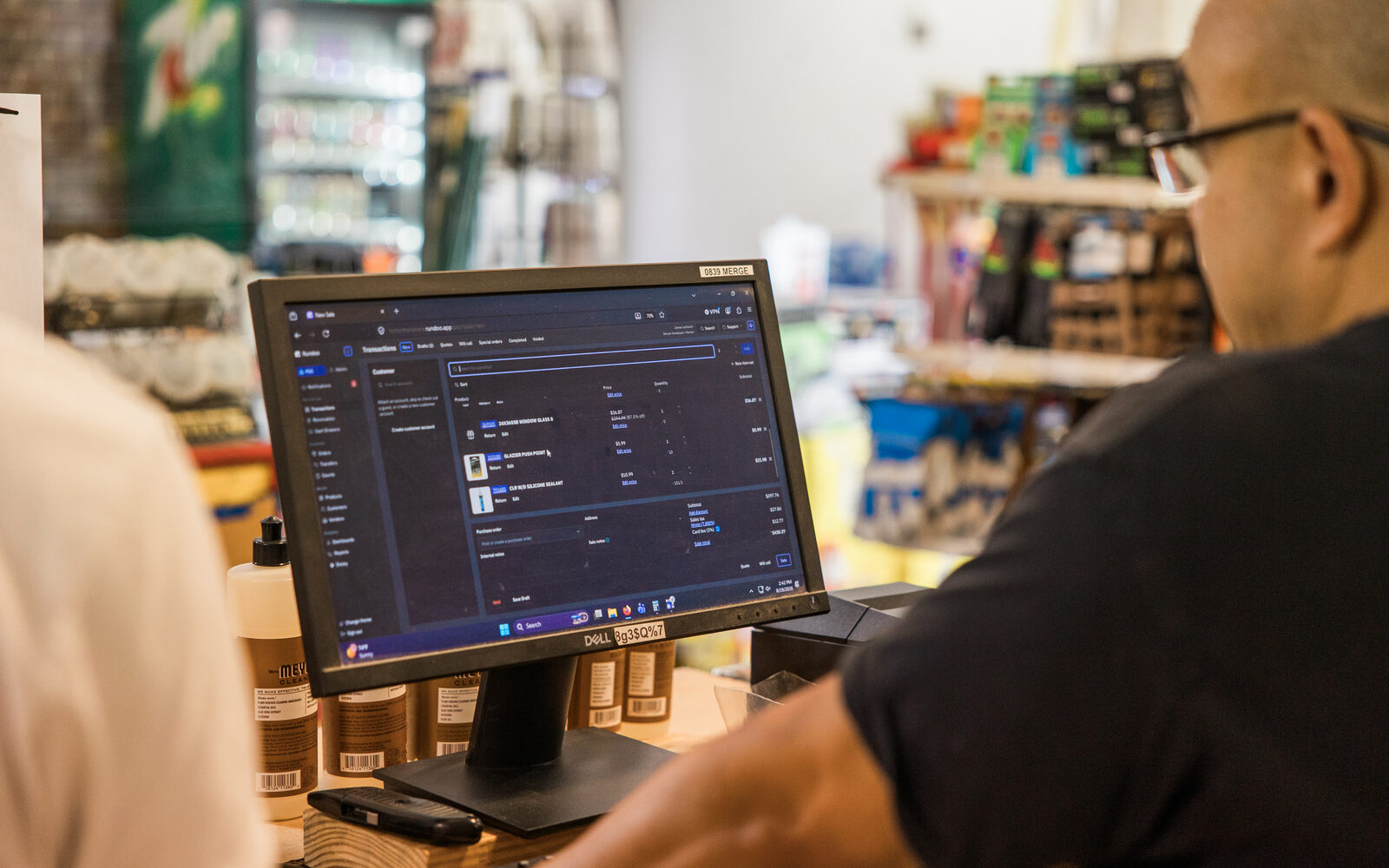
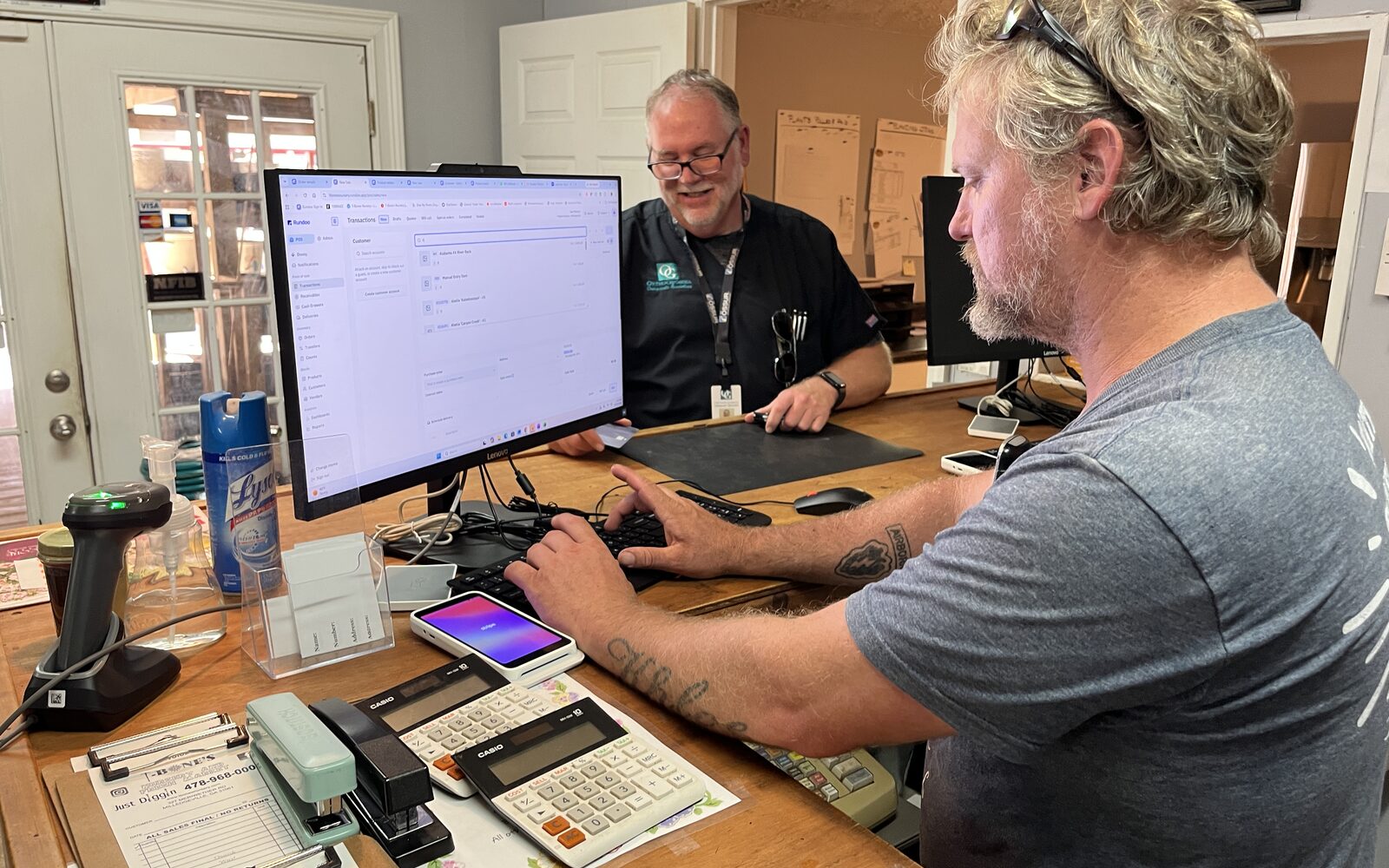
For a shared counter computer, Rundoo has shared sign-in with a PIN. You make or pick an account for the workstation, turn shared sign-in on for it, sign it in once at the start of the day, and give each clerk a PIN of two to six digits. Each sale is credited to the clerk whose PIN was entered, so reporting by salesperson stays right. The PIN is for attribution: what the register can do comes from the shared account's permissions, whichever clerk is standing at it, so set that account up as a counter and keep manager rights on the managers' own logins.
Permissions are checkboxes on each person's record, more than fifty of them today in seven groups that cover admin settings, products and pricing, customers, Dooey, inventory, the point of sale, and reporting. Viewing cost, editing selling prices, editing a price at the time of sale, voiding or editing a completed sale, taking a return without a receipt, writing off an account balance, managing the cash drawer, creating and accepting inventory counts, and managing transfers are each their own switch. The staff list shows every person's count as a fraction, which makes the twice-a-year review a two-minute job. Access is scoped by location, so a clerk granted one store does not see another store's inventory or sales, and Dooey, the AI built into Rundoo, works under each person's login and follows the same permissions.
Two company-wide settings handle the idle station. One signs the clerk out the moment a sale completes, which on a shared register brings back the PIN prompt for the next customer, and the other is an inactivity timeout you set in minutes, longer for a paint desk where someone steps away to mix and shorter for a single front register. You can also require a confirmation step before a sale is voided, require a note on guest sales, or require a customer on every sale. When someone leaves, you deactivate them, which revokes every sign-in method while their name stays on the history. On a phone, staff sign in to the Staff app with a text code and carry the same permissions they have at the counter.
What to ask any vendor in a demo
Bring these to the demo and have the vendor show each one on a live screen. Our demo script of transactions to test has the rest of the list.
- Does each employee get their own login, and what does signing in involve at seven in the morning with a line at the door?
- On a shared computer, how does a clerk identify themselves between sales, and does that change what they are allowed to do or only whose name is on the ticket?
- Show me a cashier who cannot see cost and cannot change a price, then show me a manager overriding one.
- Can the register lock after each sale, and can I set how long an idle screen stays signed in?
- Where do I see voids, price changes, and returns without a receipt by employee?
- What happens to a person's sales history when I turn off their access?
- With two locations, can I limit a clerk to one store?
A system that answers all seven without a workaround will tell you who did what on any day you need to know, which is the whole point of giving everyone their own way in.