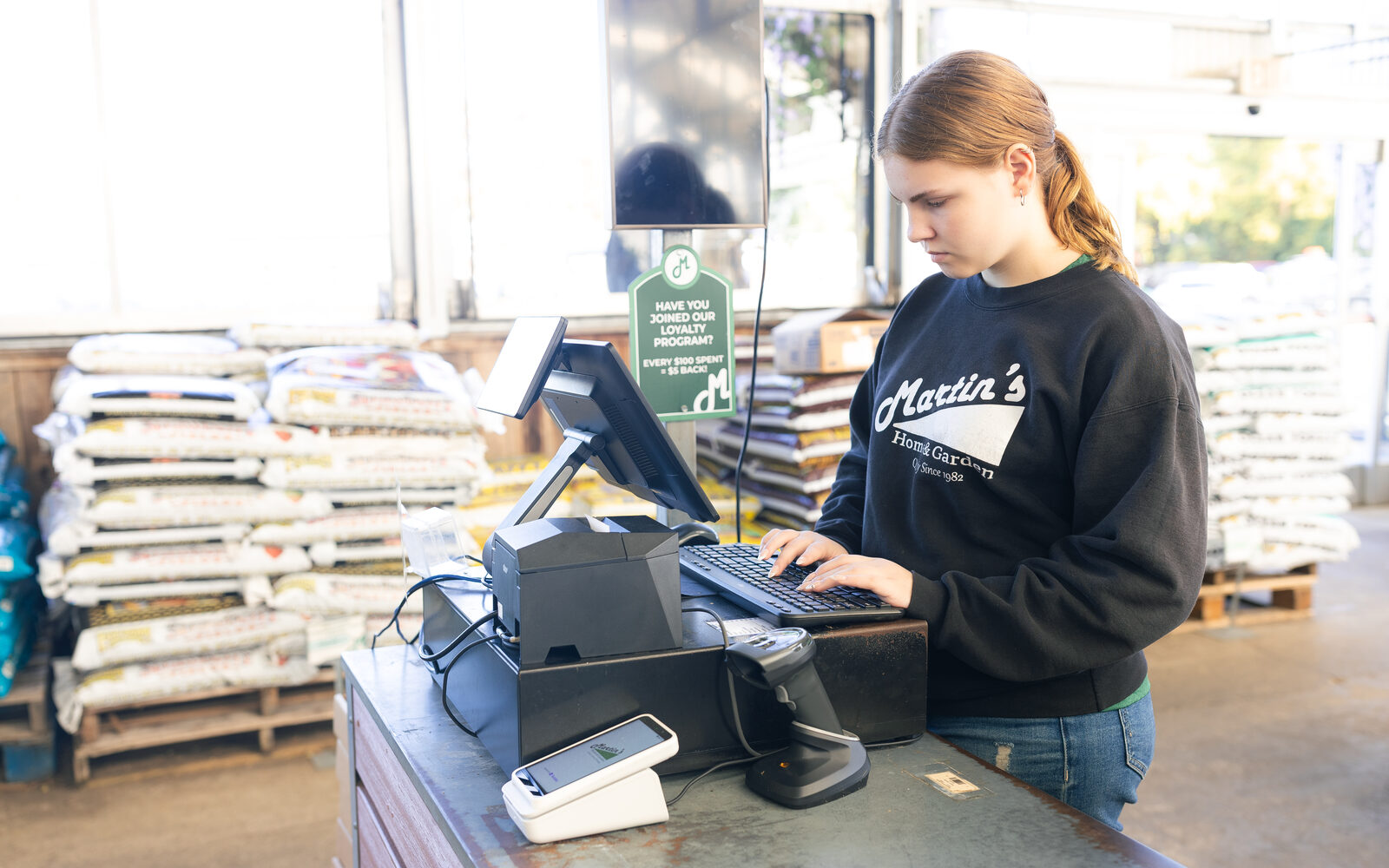
A cloud POS prints an everyday sale on a narrow thermal slip, the same three-inch receipt your customers already expect, and it prints a full-page invoice on any ordinary office printer when a contractor needs something to file. The part that changes when you move to the cloud is how the receipt printer connects: it sits on your store network and receives print jobs over the internet, instead of hanging off one computer by a USB cable. That single difference decides whether the printer you own today can come along. This guide covers the two receipt formats and when to use each, what belongs on a receipt, how network receipt printers work, how to check your current printer, and what Rundoo prints.
Two formats: the thermal slip and the full page
Owners shopping for a new system often see a full-page PDF in the demo and worry that every $2.95 sale will come out on a sheet of letter paper. It will not. Nearly every modern POS prints the same sale two ways, and the counter decides which one fits.
| Thermal slip | Full page | |
|---|---|---|
| Paper | A thermal roll about three inches wide | Letter paper |
| Printer | A thermal receipt printer at the counter | Any office laser or inkjet |
| Best for | Every walk-in sale | Job invoices, property managers, anything filed |
| Room for policy text | A few lines | The full return policy and terms |
| Speed and cost | Under a second, no ink | Slower, uses toner or ink |
| How long it lasts | Fades in heat and sunlight | Stable for years |
Most supply stores run thermal for every sale and reach for the full page a few times a day, when a contractor is billing the job to a homeowner or a paint customer wants the full color formula on paper for the re-tint in three years. A third option costs nothing at all: emailing or texting the receipt as a PDF, which the customer cannot lose in a truck.
What belongs on a receipt
A receipt is a small document doing several jobs at once, and it is worth reading one of yours as if you had never seen it.
- Who sold it and where. Store name, address, and phone, which matters more than it sounds when you run two locations and a customer brings a return to the other one.
- What was sold. SKU, description, quantity, and price for each line. For tinted paint, the formula.
- Who bought it. On a charge sale, the customer name, the job, and the purchase order number, which is what a contractor's bookkeeper looks for first.
- The money. Subtotal, tax, total, and how it was paid. If your store adds a card surcharge, card network rules require it to appear as its own line, which our guide to credit card surcharge laws by state explains.
- The return policy. Visa advises merchants to disclose return and refund terms at the time of sale, and the receipt is the natural place. The details are in our guide to return policies, store credit, and restocking fees.
- Discounts, if you want them shown. Some stores like the customer to see the regular price struck through beside what they paid, and others would rather a contractor's tier price print as a plain number. Ask whether that is a setting.
One more thing to check on a charge sale is the signature. If your accounts sign for what they take, ask to see exactly where the signature is captured and where it shows up afterward, on paper or on screen.
How a cloud POS talks to a receipt printer
On an older system with a server in the back office, the receipt printer plugs into the register computer with a USB or serial cable, and a driver on that computer runs it. A cloud POS runs in a web browser, and a browser does not drive a USB receipt printer the way installed software with a driver does. So cloud systems print receipts one of two ways:
- A network receipt printer with a cloud print service. The printer joins your store network by Ethernet or Wi-Fi and checks in with the vendor's print service every few seconds. When a sale completes, the receipt is waiting for it. Nothing is installed on the computer, and any register, tablet, or phone on the account can send to that printer.
- The browser's own print dialog. This is how the full-page invoice reaches your office printer, the same way you would print an email.
The network approach has a pleasant side effect: the printer is no longer tied to one computer. Replace the workstation and the printer does not notice. It has one requirement in return, which is that the printer and your registers sit on the same store network and that network reaches the internet. Our guide to what a cloud POS needs from your internet covers the network side, including the backup connection for the day the line drops.
The cash drawer follows the printer. On most setups the drawer connects to the receipt printer with a short cable and pops when a cash receipt prints, so a station that takes cash needs a thermal printer even if you email every receipt.
Can you keep the printer you have?
Sometimes, and you can find out in about five minutes. Turn the printer over and write down the brand and model, then check three things.
- How does it connect? A printer with an Ethernet port or built-in Wi-Fi has a chance. A printer with only a USB or serial port was built to be driven by one computer and usually cannot join a cloud print service.
- Does it support the print service the new vendor uses? Each vendor supports specific printer families, so send the exact model number and ask for a yes or no in writing.
- What paper width does it take? Most counter printers use 80mm rolls. An older, narrower printer may print a cramped receipt even if it connects.
Three other pieces of the station are easier. Your office laser or inkjet keeps printing full-page invoices with no changes. Most standard cash drawers work with any receipt printer that has a drawer port, provided the cable is the right one. And label printers are a separate question from receipt printers, covered in our guide to shelf labels and electronic shelf labels.
If the answer on your printer is no, plan the replacement into the switch instead of discovering it on go-live morning. Our guide to switching POS downtime and timeline shows where hardware fits in the month.
Setting one up, and the three things that go wrong
A network receipt printer takes about half an hour to bring up the first time: load the paper, join it to the network, point it at the vendor's print service, and register it to your location. When a printer is set up but will not print, the cause is almost always one of three things.
- It joined the wrong network. Many stores have a guest Wi-Fi and a store Wi-Fi, and a printer on the guest network cannot be reached by registers on the other one.
- Its address keeps changing. Routers hand out addresses that can change after a power cut. Ask whoever looks after your network to reserve one for the printer.
- The Wi-Fi band is wrong. Many receipt printers connect only on the 2.4 GHz band, so a router broadcasting 5 GHz alone leaves the printer with nothing to join.
A wired Ethernet connection avoids two of the three, which is why it is worth running a cable to the counter if you can.
How Rundoo prints receipts
Rundoo prints a receipt as a thermal slip or a full 8.5 by 11 page, and it can email or text any receipt to the customer as a PDF. Both printed formats carry the same sale: line items, tax, totals, and payment method. The thermal slip adds a compact logo and store name, customer and job details including the purchase order number, and a short return policy line, while the full page has room for the full logo and address, the full policy text, a tax breakdown, and cash received and change due. Paint formulas and tint codes print under the line item when the sale includes tinted paint.
Thermal receipts print on Star Micronics printers through Star CloudPRNT, and the recommended model is the TSP100IV, wired or wireless, on 80mm paper. The printer connects to your network and not to a workstation, and the cash drawer opens through it. The full page prints on any office laser or inkjet. Any completed sale can be reprinted later in either format, so a contractor who lost the slip can have the invoice in a minute.
What prints is set once. The company name and website come from your company settings, and the logo, address, and phone come from the location that rang the sale, so each store prints its own. The return policy text, the number of thermal copies per sale, whether color formulas and the account balance print, and whether the receipt shows the struck-through original price and the percent off beside a discounted line are all store-wide settings. A quick print option sends the receipt straight to the printer assigned to that location without a print dialog in between. If your store surcharges cards, the fee prints as its own Card fee line, as our guide to cash discounts and surcharges describes.
What to ask any vendor about receipts and printers
Bring a receipt from your current system to the demo, the busiest-looking one you can find, and work through this list. Our demo script of transactions to test covers the rest of the counter.
- Print an everyday sale on the thermal printer and hand it to me. Then print the same sale as a full page.
- Here is my printer's model number. Will it work, yes or no?
- Can I put my logo, my return policy, and a different address for each location on the receipt?
- Can I choose whether a discount shows on the receipt?
- On a charge sale, where does the customer sign, and where do I find that signature later?
- Can I email or text a receipt, and reprint one from last month?
- What happens to printing when the internet goes down?
A vendor who prints a real receipt in the demo, on a real printer, has answered most of these before you finish asking, and a vendor who only shows a PDF on a screen has left you some paperwork to do.